How to Add the WooCommerce Currency Switcher to a Menu
Putting the WooCommerce currency switcher in the site menu is the most requested placement, and it is a theme question as much as a plugin one. What follows is a working example you adapt to your own menu markup.
This article is just an example which purpose is to help users insert switcher in theirs site menu, and it is not part of WOOCS functionality!- Install plugin Shortcode in Menus
- Add in functions.php of your current wp theme next code:
add_shortcode('woocs_in_menu', function() { if (defined('WOOCS_LINK')) { $styles_link = WOOCS_LINK . 'views/shortcodes/styles/for-menu/'; wp_enqueue_style('woocs-style-in-menu', $styles_link . "styles.css", array(), WOOCS_VERSION); wp_enqueue_script('woocs-style-in-menu', $styles_link . "actions.js", array('jquery'), WOOCS_VERSION); ob_start(); ?> <span style="cursor: pointer;">Click on me!!</span><br /> <div class="woocs-style-for-menu-dialog" style="display:none; text-align: left; width: 160px;"> <div class="woocs-style-for-menu-title">Select Currency</div> <div class="woocs-style-for-menu-form"><?php echo do_shortcode('[woocs style=3]') ?></div> </div> <?php return ob_get_clean(); } }); - Go to Menus page: wp-admin/nav-menus.php
- Insert shortcode [woocs_in_menu] as on the screen below:
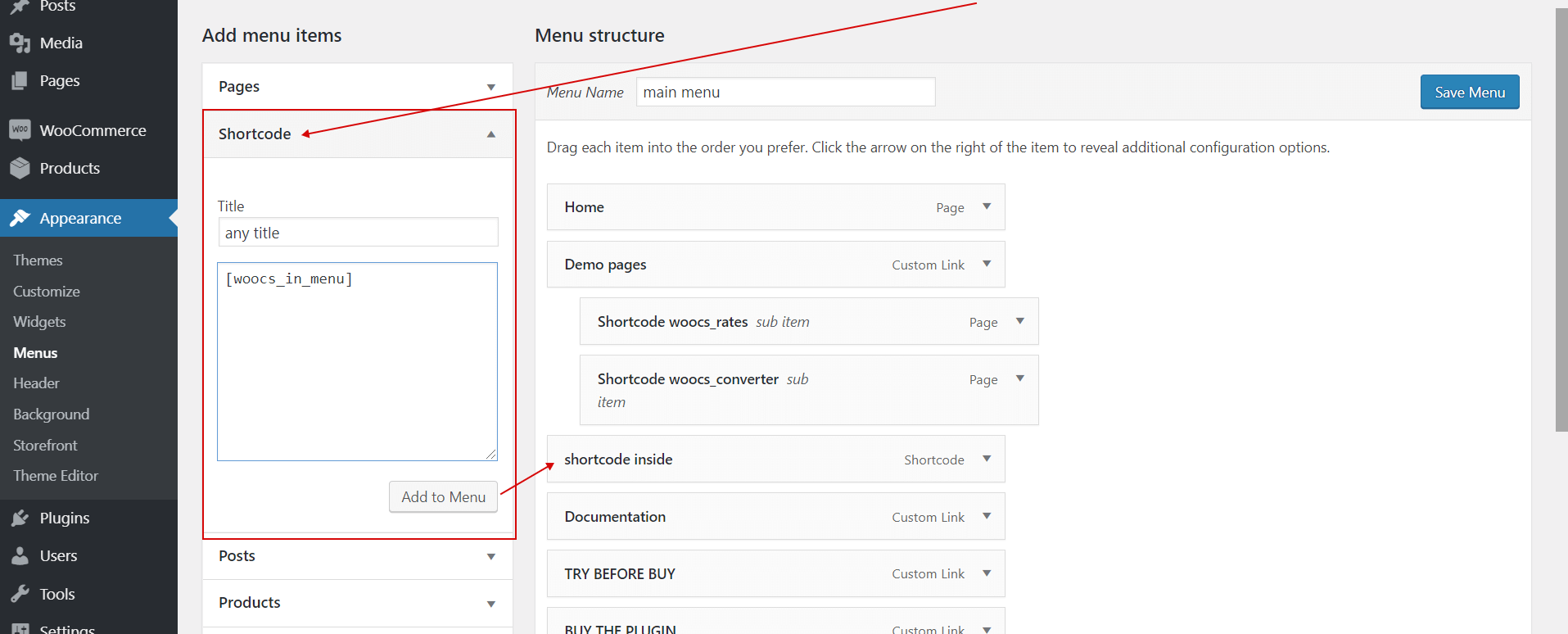
- Save menu, and look it on your site front. Remember about site cache, so reset it if you using any cache plugins
- Using CSS style overloading it as you want using hook wp_footer in functions.php:
.woocs-style-for-menu-dialog {
    position: absolute;
    text-align: center;
    background: #4478a0;
    margin: 13px 0 4px 4px;
    display: inline-block;
    width: 256px;
    box-shadow: 0px 0px 8px rgba(68, 140, 160, 0.5);
}
.woocs-style-for-menu-dialog:after,
.woocs-style-for-menu-dialog:before {
    bottom: 100%;
    border: solid transparent;
    content: " ";
    height: 0;
    width: 0;
    position: absolute;
    pointer-events: none;
}
.woocs-style-for-menu-dialog:after {
    border-color: rgba(255, 255, 255, 0);
    border-bottom-color: #5C9CCE;
    border-width: 15px;
    left: 50%;
    margin-left: -15px;
}
.woocs-style-for-menu-dialog:before {
    border-color: rgba(170, 170, 170, 0);
    border-width: 16px;
    left: 50%;
    margin-left: -16px;
}
.woocs-style-for-menu-dialog .woocs-style-for-menu-title {
    color: #fff;
    font-weight: bold;
    text-align: center;
    border: 1px solid #5189B5;
    border-width: 0px 0px 1px 0px;
    margin-left: 0;
    margin-right: 0;
    margin-bottom: 4px;
    margin-top: 8px;
    padding: 8px 16px;
    background: #5C9CCE;
    box-shadow: 0px 1px 4px rgba(68, 120, 160, 0.1);
    font-size: 16px;
    line-height:2em;
}
.woocs-style-for-menu-dialog .woocs-style-for-menu-title:first-child {
    margin-top: -4px;
}

.woocs-style-for-menu-form
{
    padding:16px;
}
add_action('wp_footer', function (){ ?> <style> /********* overload any styles here ***********/ </style> <?php });
See demo here Also read: /how-to-insert-currency-switcher-into-site-menu/
Obsolete description:
- Install plugin https://wordpress.org/plugins/shortcode-in-menus/
- Go to menu page wp-admin/nav-menus.php
- Drop shortcode [woocs] into navigation label textinput with any text you want